AXLR8 RB Admin (Report Builder Admin module) allows you to create and run reports and queries on your live data.
Even if you do not have the skills or time to create new reports, many changes can be made easily.
Before you start
They can also be made no risk. The reason for this is that there is a “Save as” feature so you can work on a safe copy before making changes to the live Report that your colleagues may be using. All this assumes you have reasonable data science skills and check the results in the “Preview” feature before using the new report.
In the screenshot below, you can see a green box surrounding the columns that have been chosen for a report.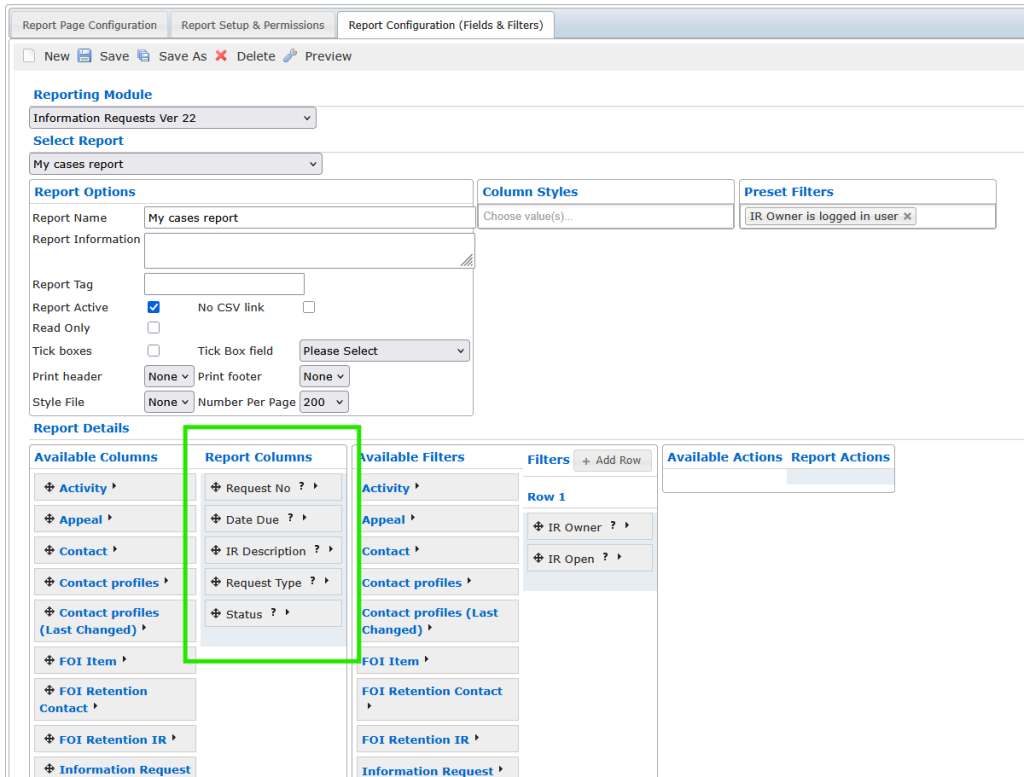
Adding columns
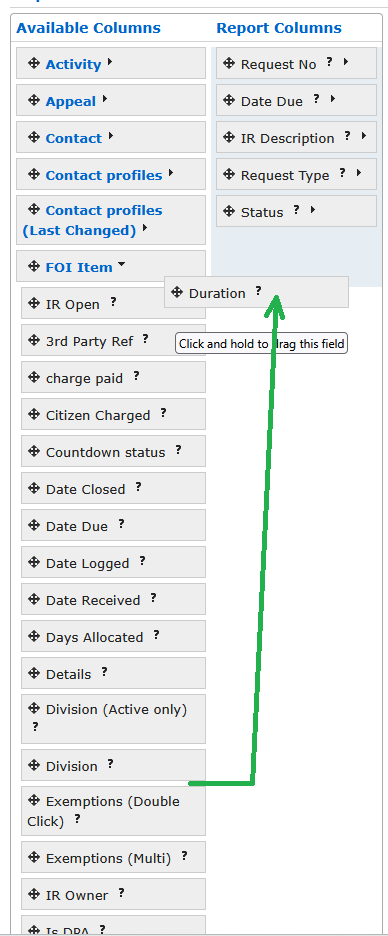
For example, let’s say we want to add the duration (number of days an IR has clocked so far excluding certain statutory pauses and restarts).
To the left of the “Report Columns” list is “Available Columns” This is a collection of other data boxes each containing the fields (columns) you can choose to add. Hold the “arrowed cross” (a common icon for moving an object) and drag it up to the columns list. You can also order the position of the columns in your Report. The top field (Request Number in this case) will be the first column (left most) in your report. Until you save these latest changes, Status will remain the last (right most) column in your Report.
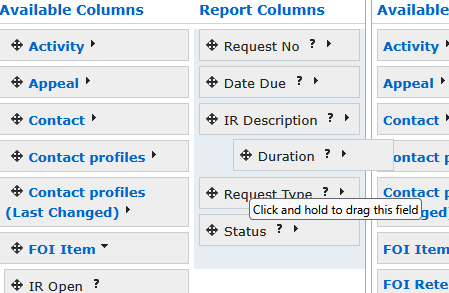
Duration will go wherever you drop it. That includes betweeen other columns. Those field names will move up and down to accomodate the new entry. In the screenshot below, “Duration” is being placed so that it shows in the fourth column of the Report after “IR Description”.
Don’t forget to hit Save. Then always check your Report. To do this, click on “Preview”. Both these commands are to be found in the top menu.
Removing Columns
This is the same process but easier. You do not need to open the right fields colllection and put it back where it was like a librarian replacing books on the right shelf. You simply double click on the “moving cross and it puts itself away!
Remember to hit “Save” and check the “Preview”.